

Key Takeaways
- To check PHP version, use Site Health in WordPress, MultiPHP Manager in cPanel, or php -v on a server.
- The php -v command shows the command-line PHP, which may differ from the PHP your website runs.
- A temporary phpinfo() page shows the exact PHP version, build date, and server API your website uses.
- The X-Powered-By header can reveal a website’s PHP version, but many servers hide it.
- A version number alone cannot prove a server has the PHP2Shell fix, because vendors backport fixes.
- PHP 8.1 and older have no official PHP2Shell fix and need a backport or an upgrade.
To check your PHP version, run php -v on the server. You can also read it in WordPress Site Health or cPanel’s MultiPHP Manager. Then confirm the version your website actually serves, as it can differ from the one shown on the command line.
Knowing your exact PHP version matters more than usual right now. The PHP2Shell flaws affect PHP itself, and the fix depends on your version. This guide covers each platform step by step.
What Is the Fastest Way to Check the PHP Version?
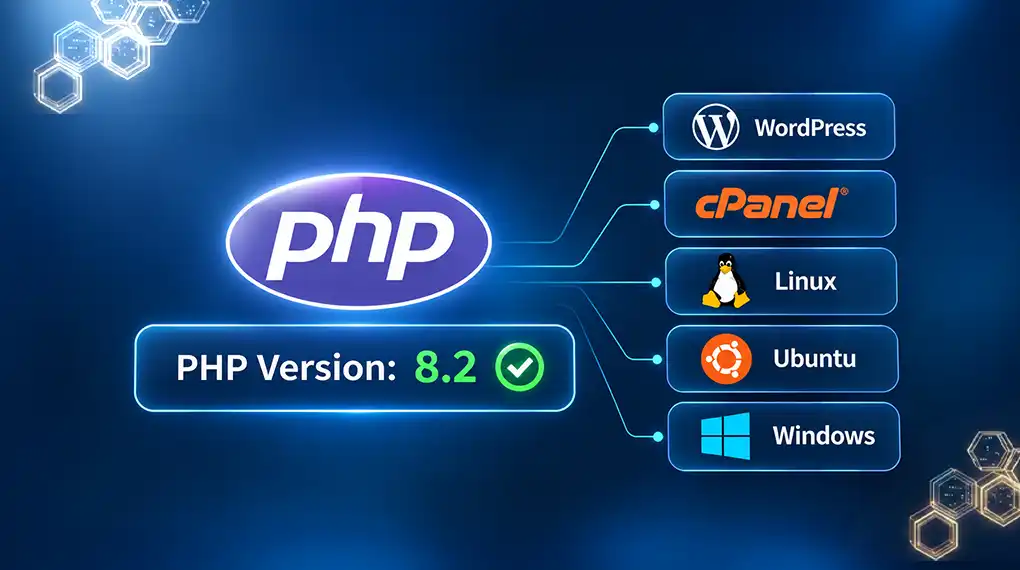
The fastest way to check the PHP version depends on your access level, and each method takes less than two minutes. WordPress users can open Site Health. cPanel users can open MultiPHP Manager. Server users can run php -v in a terminal. For a full picture, also check the version your web server runs, not just the command line.
This matters now because the PHP2Shell flaws, CVE-2026-109618 and CVE-2026-109619, are fixed only in specific PHP builds. Our guide explains which PHP versions are affected by PHP2Shell.
How Do You Check the PHP Version in WordPress?
To check the PHP version in WordPress, log in as an administrator, go to Tools, then Site Health. Select the Info tab and expand the Server section. The PHP version line shows the version WordPress runs on. This method needs no server access, so it works on shared and managed hosting.
Follow these steps:
- Log in to your WordPress dashboard as an administrator.
- Go to Tools, then Site Health.
- Select the Info tab.
- Expand the Server section.
- Read the PHP version line (for example, 8.3.36).
Site Health shows the version of WordPress your site runs, which is useful. But Site Health doesn't show the build date, and patched builds can keep old version numbers. Our guide on whether your WordPress site is affected explains what to ask your host next.
How Do You Check the PHP Version in cPanel?
To check the PHP version in cPanel, log in and open MultiPHP Manager under the Software section. The domain list shows the PHP version each domain uses. A domain marked “inherit” uses the server’s default PHP version, shown at the top of the page. cPanel shows the PHP branch, not the exact patch level.
Follow these steps:
- Log in to cPanel.
- Open the Software section and select MultiPHP Manager.
- Find your domain in the list.
- Read the PHP Version column next to the domain.
- If the domain shows “inherit,” read the System PHP Version at the top of the page.
cPanel’s documentation notes that each domain can use any installed PHP version. So, two sites on the same cPanel account may run different PHP versions. Check every domain, not just the main one.
MultiPHP Manager shows a branch, such as PHP 8.3, rather than a full release, such as 8.3.36. For the exact release and build date, use the phpinfo() method below or ask your host.
How Do You Check the PHP Version on Linux and Ubuntu?
To check the PHP version on Linux or Ubuntu, open a terminal and run php -v. The output shows the version, the build date, and “cli,” which means command line. Then check the PHP-FPM service, which usually serves websites. On Ubuntu, run php-fpm8.3 -v, replacing 8.3 with your installed branch.
Run these commands in order:
- php -v shows the command-line PHP version and build date.
- ls /etc/php/ lists every PHP branch installed on Ubuntu or Debian.
- php-fpm8.3 -v shows the PHP-FPM version for that branch on Ubuntu.
- systemctl status php8.3-fpm shows whether the service is running and when it last started.
On Red Hat, Rocky, or AlmaLinux, use php-fpm -v and systemctl status php-fpm instead.
The systemctl output matters for PHP2Shell. If the service started before you installed the fix, the old code is still running. Restart the service so the patched code loads.
How Do You Check the PHP Version on Windows?
To check the PHP version on Windows, open Command Prompt or PowerShell and run php -v. If Windows cannot find PHP, run where php to locate the installation. Windows machines often host multiple PHP installations, such as XAMPP and IIS. The copy in your terminal may not be the one serving your website.
Follow these steps:
- Open Command Prompt or PowerShell.
- Run php -v to see the version and build date.
- Run where php to see which PHP folders are on the system path.
- For IIS websites, confirm the version with the phpinfo() method below.
Why Is My Website’s PHP Version Different?
The command-line PHP version can differ from your website’s because they are often separate programs. The terminal runs the PHP CLI. Websites usually run PHP-FPM or an Apache module. A server can hold several PHP branches, and each can be updated or restarted separately. Always confirm the version the web server serves.
To check the version your website runs, use a temporary phpinfo() page:
- Create a file with a random name, such as check-7f3a.php, in your website’s root folder.
- Add one line to the file: <?php phpinfo();
- Open the file in your browser.
- Read the PHP Version, Build Date, and Server API lines at the top.
- Delete the file immediately.
Always delete the file. A phpinfo() page shows your full server setup to anyone who finds it.
The Server API line tells you which PHP program serves the site. “FPM/FastCGI” means PHP-FPM, and “Apache 2.0 Handler” means mod_php. PHP’s security advisory rates mod_php as the highest-risk setup for PHP2Shell.
Can You See a Website’s PHP Version From Outside?
You can sometimes check a website’s PHP version from its public headers. With the expose_php setting on, PHP adds a header such as “X-Powered-By: PHP/8.3.36.” Many servers turn this setting off for security. A missing header proves nothing, and a visible header cannot show whether a fix was backported.
There are two ways to read the headers:
- In a terminal, run curl -I https://[yourdomain] (e.g. curl -I https://taazaa.com) and look for X-Powered-By.
- In Chrome or Firefox, open developer tools, select the Network tab, reload the page, and click the first request.
PHP’s documentation describes expose_php as the setting that controls this header. Turning it off hides the version but does not make PHP safer. PHP’s security guide treats hiding PHP as “security by obscurity,” which is the weakest form of security.
A public header check is a starting point, not a verdict. Taazaa’s free domain check reads public signals like these. A complete review requires a look inside the server.
How Do You Know If Your PHP Build Has the PHP2Shell Fix?
To know if your PHP build has the PHP2Shell fix, check three things. First, see if the version is 8.5.12, 8.4.27, 8.3.36, 8.2.35, or newer. Second (or instead), check that the build date is on or after October 21, 2026. Third, make sure PHP restarted after the update. A version number alone can be misleading because vendors backport fixes.
Hosts such as GoDaddy and Hostinger confirm the build-date rule. Both say patched builds may keep their old version numbers.
On Ubuntu or Debian, run apt changelog php8.3-fpm and look for both CVE IDs. On Red Hat systems, run rpm -q --changelog php-fpm and search for the same IDs.
What Should You Do If Your PHP Version Is 8.1 or Older?
If your PHP version is 8.1 or older, plan an upgrade to PHP 8.3 or newer. PHP has released no official PHP2Shell fix for these versions. A host or vendor backport can close the gap for now. Without either, CISA advises taking PHP systems offline until patched.
Take these steps in order:
- Ask your host or operating system vendor for a backported PHP2Shell fix.
- If no backport exists, isolate the system or take it offline.
- Back up the site and database.
- Test the site on PHP 8.3 or newer in a staging copy.
- Fix any broken code, then move it to production.
Older code often breaks on newer PHP versions, usually due to removed functions or outdated plugins. WordPress.org’s PHP update guide recommends testing on staging first.
Skip PHP 8.2 if you can. PHP’s supported versions page shows its security support ending soon.
How Can Taazaa Help You Check PHP Versions Across Every Server?
Taazaa helps teams find every PHP server they run and confirm which version and build each one serves. Checking one site takes minutes. Checking dozens of sites, staging servers, and vendor portals takes longer. Older applications running PHP 8.1 or earlier also require careful upgrades to keep existing features working.
Taazaa’s engineers can map every PHP server you run within 48 hours. The review confirms versions, builds, and restarts. It also checks for signs of intrusion since October 17 and ends with a ranked fix plan. If an application is too old to upgrade, Taazaa works with your team to rebuild it.
Start with a quick look at where you stand. Check your domain for free.
FAQs
How do I check PHP version from the command line?
Open a terminal and run php -v. The output shows the PHP version, the build date, and “cli” for command line. This is the command-line PHP, which may differ from your website’s PHP. To check the website’s version, use a temporary phpinfo() page or run php-fpm -v.
How do I check my website’s PHP version without server access?
Without server access, check WordPress Site Health or your host’s control panel. You can also read the X-Powered-By header with curl -I or your browser’s developer tools. Many servers hide this header, so a missing header proves nothing. Your host can always confirm the exact version.
Why does php -v show a different version than the one on my website?
The php -v command shows the command-line PHP, while your website usually runs PHP-FPM or an Apache module. A server can hold several PHP branches at once. Each branch can be updated or restarted separately. A temporary phpinfo() page shows the exact version your website serves.
Does my PHP version number prove the PHP2Shell fix is installed?
Not always. Linux vendors and hosts often backport fixes without changing the version number. Check the build date instead. A build dated October 21, 2026, or later usually includes the fix. On Ubuntu, apt changelog shows whether the package lists both PHP2Shell CVE IDs.
What PHP version should I use?
Use PHP 8.3 or newer. For PHP2Shell, the minimum fixed releases are 8.5.12, 8.4.27, 8.3.36, and 8.2.35. PHP 8.1 and older have no official fix. Test any upgrade on a staging copy first, because older code can break on newer PHP.